
Compress Video - Resize Video
TAPUNIVERSEVideo Players & Editors
4.131.00 Reviews
- Version
- 1.2.17
- Installs
- 50.00K
- Age Rating
- Everyone
Screenshots
Our Review of Compress Video - Resize Video
 Analysis by Appyee
If you've ever found yourself struggling with large video files clogging up your phone's storage or had trouble sharing those hefty clips with friends, let me introduce you to a handy app called Compress Video - Resize Video. I’ve been using it as a focused tool for shrinking and adjusting clips, and its appeal is easy to understand: it brings a simple video task within reach without asking you to learn a full editing suite.
When a Smaller File Makes a Difference
A video can look fine on your phone and still be awkward to send, upload, or keep alongside everything else you record. I find this app most useful when I already have a clip worth keeping but need a more manageable copy for a particular purpose. That might mean making room before a trip, sharing a family moment in a group chat, or preparing a clip for a social post without moving to a computer.
The distinction matters: compression is not a magic way to make every video smaller with no trade-off. When a file is reduced, the balance between size and visible detail depends on the choices you make and the source clip. I treat the first compressed result as a practical version for sharing, not automatically as a replacement for the original. Keeping the original until I have checked the new copy is a sensible habit, especially for a once-only event or footage I may want to edit later.
First Impressions and Setup
The first thing that caught my attention was the app's straightforward approach. The installation process is a breeze. Download it from the app store, and boom, you’re ready to go. Once you open Compress Video - Resize Video, you're greeted with an intuitive interface that doesn’t require a degree in rocket science to navigate. It's all laid out in such a user-friendly way that even if you’re new to video editing, you won’t feel lost.
It is a paid app, priced at $2.99, so I would decide based on whether video resizing is a recurring need rather than a one-off emergency. TAPUNIVERSE is the developer, and the app sits in the video players and editing category. Its Everyone age rating makes the audience broad, while the 4.1 average from around 2.2K ratings and 50K+ installs suggest it has found a modest, established audience. It was released on April 19, 2023, and version 1.2.17 is the current version. It supports devices running OS 8.1 or later.
Easy Navigation
The main menu offers a clear set of options like "Compress Video" and "Resize Video." Just tap on what you need, and you’re off to the races. The layout is simple, with large icons and text that make it easy to understand what each function does. It's this simplicity that makes the app so accessible to everyone.
That direct layout is helpful when I have a specific job in mind, but it also encourages a useful bit of discipline: decide whether the problem is file size or frame dimensions before starting. A clip that is too large to share may need compression, while a clip that does not fit a platform’s shape or dimensions may need resizing. Those are related tasks, but they are not interchangeable. Choosing the right path first saves unnecessary processing and helps avoid changing more than you intended.
Compressing Videos
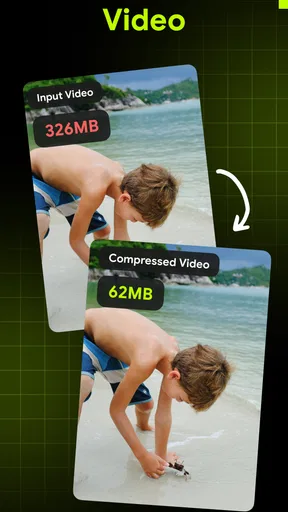
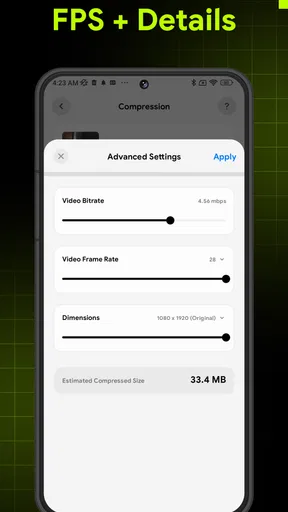
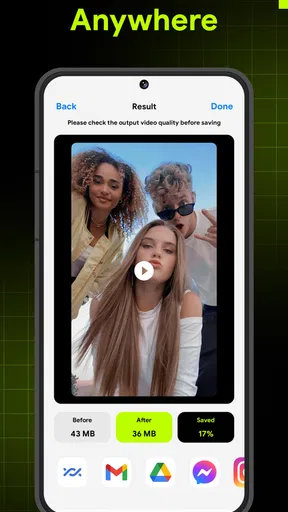
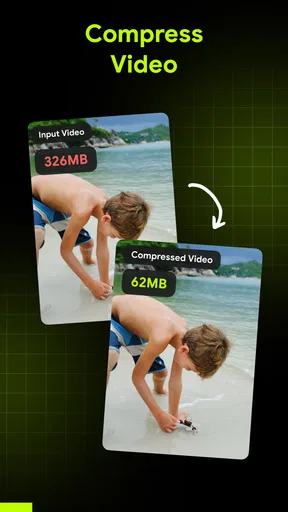
This is where the magic happens. You select a video from your gallery, choose the quality and size you want, and the app does its thing. It’s almost like watching a magician at work. The compression process is surprisingly fast, and you don’t have to worry about waiting around forever. Plus, you can actually see the difference in size before and after compression. That’s a huge win when you’re trying to save space or send videos over messaging apps without losing quality.
For a repeatable routine, I would start with a copy of the clip and choose a moderate reduction before trying a more aggressive one. Then I would compare the resulting file size and watch the new video, paying attention to movement, fine detail, and sound. A static talking-head recording may tolerate a smaller file better than a night-time clip with motion and texture. The previewed size change helps make the decision concrete, but checking the exported result is still the step that tells me whether the trade-off suits this particular video.
A realistic example is recording a long birthday greeting that needs to reach relatives through a messaging app. I would trim away the pause at the beginning and the camera shake at the end, then compress the section I actually want to send. That order can be more efficient than shrinking the whole recording: there is little benefit in spending space on seconds no one needs to see. I would still keep the unaltered recording until I knew the shared copy played correctly.
Resizing Made Easy
When it comes to resizing, the app shines here too. You can adjust the dimensions of your videos quickly. This feature is particularly handy if you’re looking to upload something to social media platforms that have specific size requirements. It takes the guesswork out of the equation and saves you from the hassle of trial and error.
Resizing deserves a little care because changing dimensions can affect how a video appears, not just how much storage it uses. Before choosing a new size, I would consider where the clip is going and whether its framing already suits that destination. A smaller frame can be useful for a quick post or a screen with modest requirements, but it is not automatically the best choice for footage I may later reuse on a larger display. If the goal is simply to send a file, compression may be the more relevant adjustment; if the shape or dimensions are the issue, resizing is the more direct tool.
Practical Habits for Repeat Jobs
The app’s simple workflow suits people who handle the same kind of clip often, even without relying on hidden shortcuts or elaborate automation. I would use a consistent sequence: select the source, decide whether trimming, compression, or resizing is needed, make one change at a time, and check the finished file before sharing. One adjustment at a time makes it easier to see which choice affected the result.
For several clips from the same outing, I would also avoid rushing through them with identical settings. A bright, steady landscape video and a dim indoor clip can respond differently to compression, so checking a representative sample first is safer than assuming one choice will look equally good across every recording. If the sample holds up, I can apply the same general approach to similar clips while still reviewing the important moments in each output.
Performance and Functionality
Now, let’s talk about performance. The app runs smoothly without any noticeable lag or crashes. It handles both large and small files efficiently, and you can work on multiple files without the app slowing down. Whether you have a flagship device or an older model, Compress Video - Resize Video seems to optimize its operations to work seamlessly.
For everyday use, that kind of focused performance is more valuable than a crowded collection of editing controls. I would still plan around the source video: a long or high-detail recording can take more time and space to process than a short clip, and it is sensible to leave the app open and the phone available while a job is underway. If I am preparing multiple files, I would work in manageable batches and confirm each saved result before moving on, rather than assuming that a completed action means every copy is ready to share.
Quality Retention
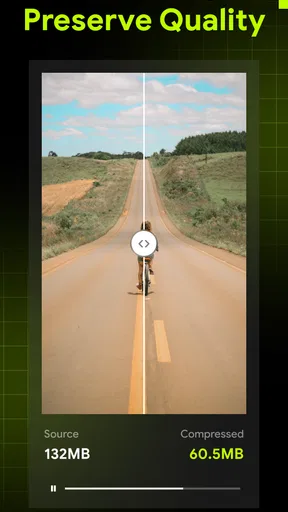
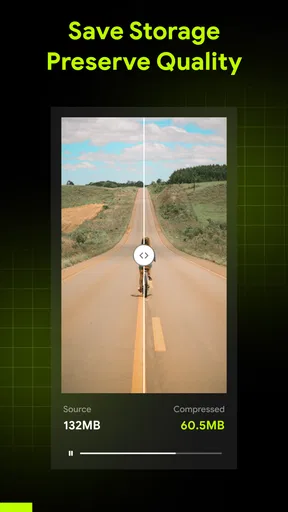
One of my worries was losing video quality during compression, but this app does a stellar job of retaining as much quality as possible. Of course, some reduction is inevitable, but the app gives you control over how much quality you’re willing to sacrifice for a smaller file size. It’s all about finding that sweet spot, and the app guides you through it.
The practical limit is that no setting can make a smaller file identical in every respect to the original. If the footage is important, if it contains fast movement, or if I expect to edit it again, I would favor a less aggressive reduction and retain the original. For a casual clip that only needs to travel through a chat, accepting a visible but modest loss may be a reasonable exchange. I would not use a heavily reduced copy as my only archive of a special occasion.
Additional Features
Beyond the basics, the app offers some cool extras. You can cut videos before compressing them, which is a neat little feature if you’re looking to trim down the content before sending it off. It’s like having a mini editing suite right in your hand. These additional tools make the app versatile and add to its overall value.
That trimming option is especially useful as a first step rather than an afterthought. Removing a long lead-in, an accidental recording, or a section that does not belong in the shared version can reduce the amount of footage being processed and make the final clip more purposeful. I would watch the cut points before exporting, because a trim that is too tight can remove the context that makes a moment understandable. This app is best treated as a practical utility for those focused edits, not as a substitute for a timeline editor when a project needs detailed assembly, layered effects, or careful storytelling.
How It Fits Beside Other Video Tools
Compared with the usual alternatives, this app has a narrower job than a full video editor and a more hands-on approach than simply sending the original file and hoping a messaging service handles it well. A general editor may offer more creative control, but that can mean extra steps when all I need is a smaller copy. A platform’s built-in upload processing can be convenient, yet it may not give me the same deliberate chance to prepare a file before sharing it elsewhere. Compress Video - Resize Video makes the most sense in the middle: a dedicated option for people who want to choose a size or dimensions themselves without turning a quick task into a full editing session.
I would skip it if I rarely record video, already have a dependable editor that covers this task, or need advanced color correction and multi-track editing. It is also not my first choice when preserving the highest-quality master is the priority; in that situation, I would keep the original and use a more controlled desktop workflow if necessary. But for someone who regularly sends phone footage or needs occasional space relief, the focused tools can be easier to reach than a broad editing app.
Final Thoughts
To wrap it up, Compress Video - Resize Video does exactly what it promises and does it well. The app is straightforward, quick, and effective. It’s perfect for anyone who needs a reliable way to manage video sizes without compromising on quality. Whether you’re a content creator, a social media enthusiast, or just someone who loves capturing memories, this app is a fantastic tool to have in your arsenal. So, if you’re tired of dealing with large video files, give this app a shot. It might just be the solution you’ve been searching for.
My recommendation is more specific: I would consider it when I want a direct, phone-based way to trim, compress, or resize a clip and can judge the result before sending it. I would not expect it to replace a full editing workflow, and I would protect important originals rather than treating compression as lossless in every practical sense. The paid price makes most sense for people who face this task repeatedly; occasional users may prefer to rely on tools they already have. If that balance matches how you handle videos, it is a useful little problem-solver, especially when a file needs to be ready for a message or upload without a detour through a computer.
Verdict
Strengths of Compress Video - Resize Video
- Easy-to-use interface for quick navigation.
- Supports multiple video formats efficiently.
- Batch processing saves time and effort.
- High compression rates with minimal quality loss.
- Custom resolution settings for precise output.
Limitations of Compress Video - Resize Video
- Limited features in the free version.
- Occasional slow processing on large files.
- Ads can be intrusive during use.
- No cloud saving options available.
- Lacks advanced editing tools.
Other Releases by TAPUNIVERSE
View All
Passport Photo: ID Photo Print
Art & Design4.9

Print Photo - Print to Size
Art & Design3.7
Similar Picks in This Category
View All
Google TV
Google LLC3.9

iTunes
Apple4.7

YouTube
Google LLC3.8

MX Player
Amazon Mobile LLC4.2

CapCut - Video Editor
Bytedance Pte. Ltd.3.5

PLAYit-All in One Video Player
PLAYIT TECHNOLOGY PTE. LTD.4.5
Frequently Asked Questions
What is Compress Video - Resize Video used for?
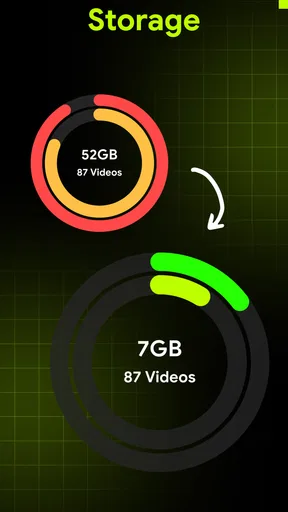
Compress Video - Resize Video is designed to reduce the file size of your video files while maintaining their quality. This app is perfect for freeing up storage space on your device, making it easier to share videos through messaging apps or social media platforms. It supports various formats and offers customizable compression settings.
Does Compress Video - Resize Video support batch processing?
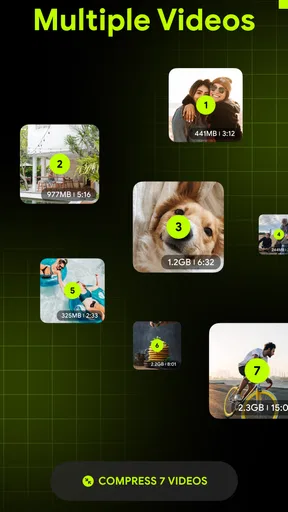
Yes, Compress Video - Resize Video supports batch processing, allowing you to compress multiple videos at once. This feature is particularly useful for users who have a large number of videos and want to save time by processing them simultaneously instead of one by one.
Will the app significantly reduce video quality after compression?
Compress Video - Resize Video aims to balance size reduction with quality retention. While there may be some loss in quality, the app provides options to adjust compression levels according to your preferences. You can choose higher compression for smaller size or lower compression to maintain higher quality.
Is Compress Video - Resize Video easy to use for beginners?
Yes, the app is designed with a user-friendly interface that makes it accessible for beginners. It provides straightforward navigation with clear instructions and intuitive controls, allowing even those with minimal technical skills to efficiently compress and resize their videos without any hassle.
Are there any in-app purchases or hidden fees?
Compress Video - Resize Video is free to download and use, but it may offer in-app purchases for additional features or to remove ads. While the basic functionality is available for free, users can opt for these purchases to enhance their experience and access premium features.
